 Spektiq
Best local LLM: choose a model for your hardware
· 13 min read
Why there is no lasting best local LLM
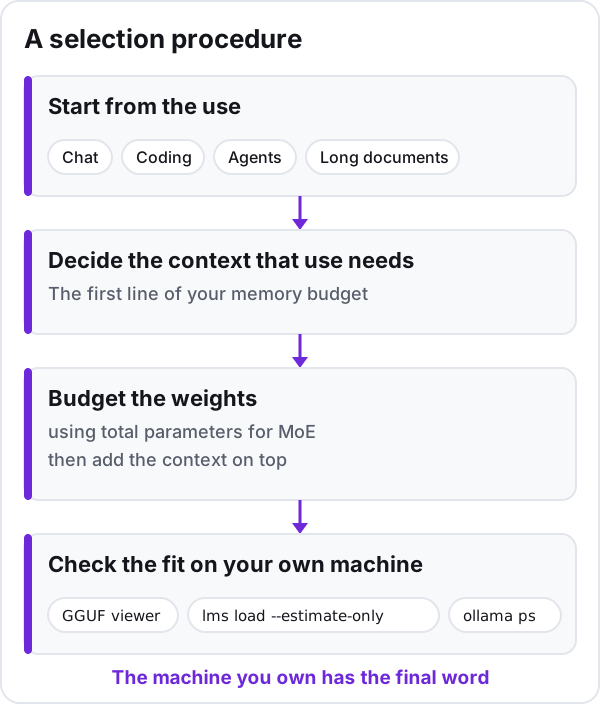
The question behind "best local LLM" is rarely about a leaderboard. It is: which open-weight model will load on my machine and stay usable for what I actually do? The short answer is that a fixed "top N" list is the wrong tool for that, because it ages faster than your hardware. What lasts is a selection procedure: start from the use, budget the memory that use implies, then check the fit on your own machine before you trust anything. The rest of this article walks through those steps, with commands you can run.
Rankings date fast, and there is a dated example of it. The original Hugging Face Open LLM Leaderboard was archived in June 2024 and replaced by a newer version (checked on 2026-10-12). A list built on the old board is already a historical document, and any board you rely on today deserves the same check before you trust its ranking.
There is also the question of where the scores come from. Hugging Face built that leaderboard because scores in papers and marketing releases were often published without reproducible code, and with prompts or evaluation setups optimized to give the models their best chance. A publisher's score is a claim, not an independent measurement. We cover how to read benchmarks against what a model really costs to run in our piece on independent benchmarks and real costs. In this article, any model named is a dated example, not the answer.
If you have not installed a runtime yet, start with what running an LLM locally takes and costs, then come back: choosing a model only makes sense once you know where it will run.
Start from the use, because the use sets the context
Each use asks for a different amount of context, meaning the text the model can see at once: your prompt, the conversation so far, the files or tool outputs you feed it.
- Chat: short exchanges, where a modest context is usually enough and a longer one mostly helps when a conversation runs on.
- Coding: the model has to see the code it is editing, sometimes several files, plus your instructions. Context fills up quickly.
- Agents: every tool call, search result and intermediate step lands back in the context. Long sessions are the norm, not the exception.
- Long documents: summarizing a report or asking questions about a contract means the whole text, or large chunks of it, has to fit.
Context is not free. Ollama states plainly that a larger context length increases the memory required to run a model. That memory comes on top of the weights, so the same model can fit comfortably for chat and spill out of your GPU when you open it for an agent session.
Defaults deserve a second look too. Ollama picks a default context length based on the VRAM it finds, and its own documentation recommends a much larger context for web search, agents and coding tools. As of 2026-10-12, Ollama's FAQ and its context-length page do not even give the same default value. Do not rely on a stated default: check the effective context in your runtime once the model is loaded.
The takeaway for this step: decide the context your use needs before you pick a size class. It is the first line of your memory budget, not an afterthought.
Budget memory for the weights first
The second line of the budget is the weight file itself. Its size follows from two things: the parameter count printed on the model card, and the bits per weight of the quantization you choose. Multiply them, then convert bits to bytes, and you get an estimate of the file size (the table's first note gives the method).
Quantization is where you have room to move. The GGUF format used by llama.cpp, and by the runtimes built on it, offers integer quantization at several bit levels. Lower bits make the file smaller and lighter on memory, at the cost of some quality. Two details matter when you read file names. K-quants such as Q4_K and Q5_K use super-blocks with per-block scales, so their effective bits per weight sit above the nominal count in their name. The older Q4_0, Q5_0 and Q8_0 types are labelled legacy in Hugging Face's documentation.
The table below applies that method to a few model sizes and common formats.
| Model | Parameters (model card) | Q4_K_M (4.8944 bits/weight) | Q6_K (6.5633 bits/weight) | Q8_0 (8.5008 bits/weight) | F16 (16.0005 bits/weight) | Sources |
|---|---|---|---|---|---|---|
| Qwen2.5-7B-Instruct | 7.61 billion | 4.7 GB | 6.2 GB | 8.1 GB | 15.2 GB | [1] [2] |
| Qwen2.5-14B-Instruct | 14.7 billion | 9.0 GB | 12.1 GB | 15.6 GB | 29.4 GB | [1] [3] |
| Qwen2.5-32B-Instruct | 32.5 billion | 19.9 GB | 26.7 GB | 34.5 GB | 65.0 GB | [1] [4] |
| Qwen2.5-72B-Instruct | 72.7 billion | 44.5 GB | 59.6 GB | 77.3 GB | 145.4 GB | [1] [5] |
Each value is computed, not measured: parameters × bits per weight ÷ 8, in decimal gigabytes (1 GB = 10^9 bytes, slightly less than one GiB).
The bits-per-weight figures were measured by the llama.cpp project on Llama 3.1 8B files. Applied to other models they estimate the size of the weight file; they are not a measured size for that model.
llama.cpp's quantization README states that memory and disk requirements are the same because models are fully loaded into memory. The llama-server README is more nuanced: the server memory-maps the weight file (mmap) rather than locking it in RAM (mlock) unless asked to, and its --lazy-mode option reads certain tensors, such as per-layer embeddings, from disk on demand instead of keeping them resident. Reading from disk is slower than reading from memory, so the figures here describe the weights fully resident: to run at full speed, the weight file has to fit in RAM, in VRAM, or across both.
This table counts the weights only. It does not count the memory a runtime uses for the conversation context or its own buffers, so it is a lower bound, not a full hardware requirement.
Lower-bit formats trade quality for size. The table says what fits, not how well a given format answers.
Sources
- llama-quantize README, Memory/Disk Requirements and Quantization sections (measured on Llama 3.1 8B), ggml-org/llama.cpp (GitHub), read on 2026-10-05
- Qwen2.5-7B-Instruct model card, Qwen (Hugging Face), read on 2026-10-05
- Qwen2.5-14B-Instruct model card, Qwen (Hugging Face), read on 2026-10-05
- Qwen2.5-32B-Instruct model card, Qwen (Hugging Face), read on 2026-10-05
- Qwen2.5-72B-Instruct model card, Qwen (Hugging Face), read on 2026-10-05
- llama-server README, model loading options (--load-mode, --lazy-mode), ggml-org/llama.cpp (GitHub), read on 2026-10-12
The models in the table are size references, one family with published parameter counts at several sizes (see the table's sources), not a recommendation: pick your candidates on the date you read this, then plug their parameter counts into the same method.
Every value is an estimate, computed from a parameter count and a bits-per-weight figure rather than measured on the file you will download, and those bits-per-weight figures were measured by the llama.cpp project on another model (see the table's sources). Applied to a different model, they estimate the size of its weight file.
To run at full speed, the file has to fit somewhere: in RAM, in VRAM, or across both. llama.cpp memory-maps it and can leave some tensors on disk, but reading from disk is slower than reading from memory. On a Mac with Apple Silicon, the model uses unified memory. On a PC with a modest GPU, system RAM can hold what the GPU cannot, at a cost we come back to below.
The context you chose in the previous step, and the runtime's own buffers, come on top of the weights, so each value is a lower bound and not a full hardware requirement. And the table says what fits, not how well a given format answers: a smaller format that fits is not automatically a good answer for your task.
If your constraint is a small graphics card, the question of whether a modest VRAM budget is enough has its own dedicated piece, so we will not repeat it here.
Mixture-of-Experts: size by total parameters
Mixture-of-Experts (MoE) models are a common trap when budgeting memory. An MoE model routes each token through only part of its parameters, the "active" experts, and model cards usually list that active count next to the total, sometimes in the model name itself. It is tempting to size the model by it.
Don't. Hugging Face's explainer on MoE is explicit: although only some parameters are used during inference, all of them need to be loaded in memory. For memory, an MoE model is as big as its total parameter count.
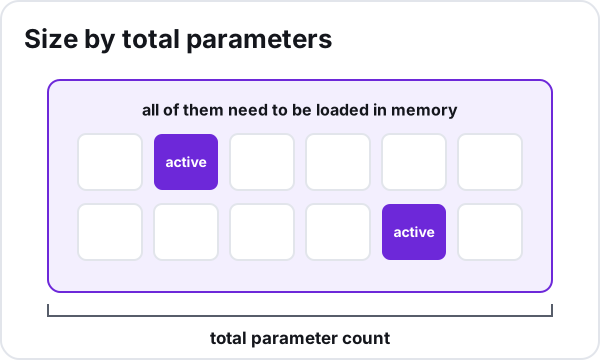
The practical rule: when you read an MoE model card, take the total parameter count and apply the same method as the table above, never the active count. Whatever the active count says about compute, it does not shrink the file you have to fit.
Check the fit on your own machine
Estimates get you to a shortlist: candidate models from the Hugging Face Hub or your runtime's own catalog, in the size class and format the budget allows. The machine you own has the final word, and three checks settle it.
Look inside the file before downloading
GGUF files store the tensors and a standardized set of metadata, and the Hugging Face Hub has a GGUF viewer that shows each tensor's name, shape and precision. Open it on the model page before you download. Quantized files are not uniform: they carry scales, and some tensors are often kept at higher precision. The real file is the reference, not a rule of thumb.
Ask LM Studio for an estimate
LM Studio's command line can print a memory estimate and exit without loading the model:
lms load <model-key> --estimate-only
The estimate accounts for context length, flash attention and whether the model is vision-enabled. It also reflects the flags you pass, so you can test the context your use needs and how much of the model goes to the GPU:
lms load <model-key> --estimate-only --context-length <your-context> --gpu max
The --gpu flag sets how much of the model to offload to the GPU: a fraction, off or max. Without it, LM Studio decides GPU usage automatically; set it explicitly when you want to test a specific split. LM Studio CLI behavior described here was checked on 2026-10-12.
Read the PROCESSOR column in Ollama
With Ollama, load the model and send it a prompt, then, from a second terminal (or after leaving the chat while the model is still loaded), list what is running with ollama ps.
ollama run <model-name>
ollama ps
Look at the PROCESSOR column. When it shows the whole model on the GPU, the model sits entirely in GPU memory. When it shows a CPU/GPU split, part of it sits in system memory. The column reports the share on each side rather than a label, so read the GPU share. The CONTEXT column of the same listing shows the context actually allocated, which is the value to trust over any documented default.
The procedure is not tied to one GPU vendor: as of 2026-10-12, llama.cpp has backends for CUDA (Nvidia), HIP (AMD), Metal (Apple Silicon), SYCL (Intel GPUs) and Vulkan. Whether Ollama or LM Studio supports your specific card is a separate check on their own hardware pages.
What breaks once it loads
A model that loads is not yet a model that works. These are the failures you meet in use, and what to do about each.
Silent CPU offload. llama.cpp supports hybrid CPU and GPU inference, which lets a model larger than your VRAM run anyway, with part of the work on the CPU. It is a useful feature, and also the reason a model that does not fit in VRAM, but fits in VRAM and system memory together, still answers, only more slowly. If replies crawl, check the split in ollama ps, or set it explicitly with LM Studio's --gpu flag, and step down a size class or a quantization level if the GPU cannot hold the model.
A short default context. Chat feels fine, then an agent forgets its instructions halfway through a task, or a coding assistant loses track of the file it was editing. That can be the default context truncating the session: Ollama's own documentation says agents and coding tools need a larger context than its default. Raise the context in your runtime (in LM Studio with --context-length, in Ollama with the context slider in the app settings or the OLLAMA_CONTEXT_LENGTH variable when serving, per its context-length page read on 2026-10-12), then re-check memory: the larger context may push the model into the offload described above.
KV cache quantization. Ollama can quantize the cache that holds the context through the OLLAMA_KV_CACHE_TYPE variable, and only when Flash Attention is enabled. Ollama describes q8_0 as having a very small loss in precision that usually has no noticeable impact on quality (checked on 2026-10-12). q4_0 saves more memory, but its loss may be more noticeable at larger context sizes, which is exactly where agents and long documents live. The setting is global to every model you run, and its impact depends on the model and the task. Treat q4_0 as an experiment to test on your own work, never as a default.
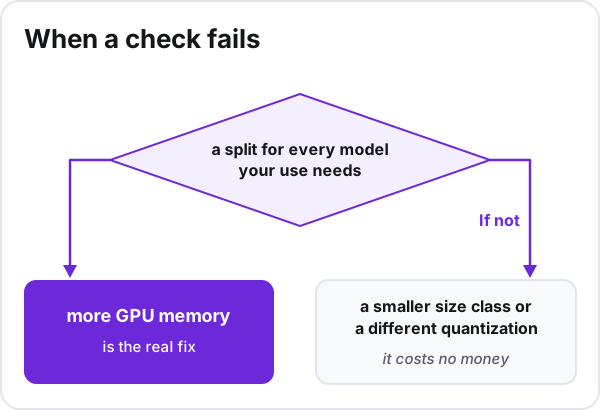
When a check fails, hardware is the answer only if hardware is the constraint. If the PROCESSOR column shows a split for every model your use needs, at the context your use needs, then more GPU memory, or a machine with more unified memory, is the real fix. If not, a smaller size class or a different quantization usually is: it costs no money, though a smaller model or a lower-bit format trades some quality, so test it on your own work.
The procedure in short
- Name your use: chat, coding, agents or long documents.
- Decide the context that use needs.
- Budget the weights with the table, using total parameters for MoE, then add the context on top.
- Verify with the GGUF viewer, lms load --estimate-only and ollama ps.
- Watch for CPU offload and truncated sessions once you are actually using the model.